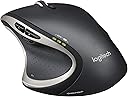
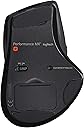
🚀 Elevate your workflow with precision and freedom — the mouse that means business
The Logitech Performance MX Wireless Mouse, now discontinued and succeeded by the MX Master 2S, offers professional-grade laser tracking with Darkfield technology, a robust 6-month battery life, and a reliable 10-meter wireless range. Designed for right-handed users, it features 6 programmable buttons and a modern ergonomic design, making it a top choice for laptop and PC users seeking precision and comfort.


| ASIN | B002HWRJBM |
| Additional Features | nv: Interfaces^1 x USB - 4 pin USB Type A | Movement Detection Technology^Laser | Features^Logitech Darkfield Laser Tracking |
| Antenna Location | Office |
| Battery Average Life | 6 months |
| Best Sellers Rank | #1,471 in Computer Mice |
| Brand | Logitech |
| Button Quantity | 6 |
| Color | black |
| Compatible Devices | Laptop |
| Connectivity Technology | USB, Wireless |
| Customer Reviews | 4.2 out of 5 stars 6,113 Reviews |
| Enclosure Material | Plastic |
| Global Trade Identification Number | 00097855060273, 04008928095104 |
| Hand Orientation | Right |
| Hardware Platform | Laptop, PC |
| Item Dimensions L x W | 5.1"L x 3.9"W |
| Item Part Number | 910001105 |
| Item Weight | 147 g |
| Manufacturer | Logitech, Inc |
| Mfr Part Number | 910-001105 |
| Model Name | 910-001105 |
| Model Number | 910-001105 |
| Movement Detection | Laser, Optical |
| Movement Detection Technology | Laser , Optical |
| Number of Batteries | 1 Lithium Polymer batteries required. |
| Number of Buttons | 6 |
| Operating System | Windows 7, Windows Vista, Windows XP |
| Power Source | Battery Powered |
| Range | 10.0 meters |
| Special Feature | nv: Interfaces^1 x USB - 4 pin USB Type A | Movement Detection Technology^Laser | Features^Logitech Darkfield Laser Tracking Special Feature nv: Interfaces^1 x USB - 4 pin USB Type A | Movement Detection Technology^Laser | Features^Logitech Darkfield Laser Tracking See more |
| Style Name | Modern |
| UPC | 097855060273 |
| Unit Count | 1 Count |
| Warranty Description | 3 year limited |
J**K
I WANT TO ADDRESS ALL THE ONE STAR REVIEWS
This is my FOURTH Performance MX. I experienced some of the same things the one star reviewers have stated. In my case it was about the left click button double clicking and a BIG problem with drag and drop. I only got six to eight months out of each but kept ordering it because when it is working it is absolutely the very best mouse I have ever used. NOW, I want to say that I THINK I have found a work around for the problem. I don't know if you want to call it an epiphany, but as I was reading all the bad reviews something kept rolling around in the back of my head. I said to my self; What if the mouse needs to be reminded what it's supposed to do with each button? So here's what I did. I brought up Set Point, and one by one, I re-assigned each button to a different task, then clicked on apply, then reassigned it back to the original task and clicked on apply again. Then I did each button the same way down to number nine. Then X'd out. So, then I played at least fifty games each of Spider Solitaire and Free Cell, each has tons and tons of double clicking and drag and drop. (I had assigned the double click to the zoom button) It has been four days now and this Performance MX is PERFORMING the way it did when it was new. I can't say this is going to work for YOU, but it IS working for ME. To those who have not thrown it in the trash, I recommend giving this another go and see what happens. And if you know someone else with the same experience, please pass it on. I will come back and do an update if things go south, but with this discovery, if things DON'T go south, I have THREE MORE PERFORMANCE MX's which I have NOT thrown out hoping for an answer and put back in their boxes waiting to be 're-awakened'. GIVE IT A SHOT, AND IF YOU HAVE SUCCESS, PLEASE UPDATE YOUR REVIEWS SO I CAN SEE IF IT IS SOMETHING THAT IS WORKING ACROSS THE BOARD. Just wanted to add a footnote. I tried different batteries using the charger and also non-rechargeable batteries, thinking that it had something to do with voltage. But that didn't make any difference. So, I had to rule that out as a fix. 3/22/13 UPDATE: 3/29/13 One week later: STILL GOING STRONG, NOT ONE SINGLE GLITCH, SINCE RE-ASSIGNING BUTTONS ! Again, it worked for me. UPDATE: 9/29/14 I am now using a FIFTH mouse since April 2013. It has been working flawlessly. It appears that whatever glitches were discovered have been addressed. If this one ever craps out, I will get another. This is the best designed mouse in existence. PERIOD. UPDATE: 10/27/17 I am still using the aforementioned FIFTH mouse. It is still operating the same as it did the day I put it into service. I use it constantly every day. I charge it every day, but what's the woof? it's the same battery and since I use it all day, meh, not a big deal to me. Cosmetically, it shows wear around the thumb side, expected. For me, this is still the best designed mouse. UPDATE 9.22.19: I am posting this update more for historical reasons since as of this date it is hard to find this mouse anymore, BUT and this is a BIG BUT, the afore mentioned mouse IS STILL IN SERVICE AND WORK AS WELL AS THE FIRST DAY. Unbelievable. Apparently they found the problem and fixed it. Too bad they don't keep producing it. But then again, who would buy it a second time.....you wouldn't need to. I AM buying the new MX Master 3, just because you need a new toy once in a while. UPDATE 5/5/20: Am still using 5th mouse since April 2013 and it still is working the same as it did then with the ORIGINAL Eneloop battery. I tried the MX Master 3 but couldn't get on board, just not right for my moves but can see where someone else would drive it like a pro. OK, so SEVEN YEARS on the Performance MX. Why wouldn't Logitech come out with a special edition Performance MX with maybe gold trim and dancing bears or something, but change nothing internally and keep it compatible with SetPoint…..I'd buy it and am sure tons of others would too. UPDATE: 5/11/2021 Sadly I report that this mouse has now started double click and drag defect. It was a loooooong run for ANY mouse. Fortunately I have another that is charging and going into service right now. I suppose it is a waste of time to do this update considering Logitech has seen fit to kill the greatest all around mouse it has produced so far.....and replaced it with poorly designed mice and software. I will keep updating this next MX until someone pulls MY plug, as it came from the same production batch and I fully expect a similar experience.
D**N
Logitech's Mighty Mouse
I've been a fan of Logitech since I bought my first mouse and keyboard from them (MX3100). Since then they have continued to keep my interest (and my patronage) by constantly developing new and innovative products. The dependable quality of Logitech devices has been the main reason I stick with them and the new Performance MX Mouse continues this trust. I wasn't sure if this mouse could hold a candle next to my beloved MX-1000, which had finally retired itself with a worn down right-click button. However, the Performance MX surprised me. Ergonomics: The first thing I noticed was the comfort - this mouse fits like a glove in my hand and it's so light it feels like I'm moving a cloud around. The rubberized thumb rest is just that; an excellent resting place for my thumb. My fingers do not get cramped or ache even after hours of use, and I should know about this since I'm an illustrator and spend many hours on the computer. Great Features: I wasn't fond of the scroll wheel placement on the Revolution, but with the Performance MX this has been replaced by two Back and Forward buttons. An awesome feature for me because I'm constantly going back and forth on web pages checking out my work. Right below these buttons is a single Zoom button, which I changed in the settings to refresh the page (Ctrl+F5). On the very bottom of the rubberized thumb rest area is a small icon, which I did not see at first and so when I inadvertently pressed down on this all my open programs and windows zoomed out and I was like 'Woah!' I could now pick whichever window I wanted by clicking on it and it would zoom back in to normal size. This is a great feature! The main scroll wheel on the top can move like greased lightening, but since I'm old school I preferred the simple click-click scroll of the older mouse. Thankfully Logitech must have some old-fashioned nerdiness in them, too, because you can press the small button behind the scroll wheel and it turns into the click-click function I love. Kupo! Having an On-Off switch on the bottom is a must for any cordless mouse and naturally the Performance MX has one. Unifying Receiver: I was really impressed with this new innovation. Not only is this thing tiny but it will work with all my wireless devices (negating the hassle of using multiple USB receivers). I have an old Logitech MX3100 keyboard and it worked without even a hiccup once I plugged the receiver in. It's also nice to have the receiver out of the way and not sticking out of the front of my PC's IO port. I just used a Logitech USB extender I had lying around, plugged it in, and have it sitting on the back of my computer desk. Nice and neat. Battery: At first I was a bit puzzled about the little black leather bag that came with the mouse. Not being one to read the manual it took me a few minutes to figure out that it contained the "extras" - a new slimmer version of the USB extender, a nice long USB cord, and the square plug that fits into the wall outlet. I thought it was a nice touch on Logitech's part to put these extras in their own little zippered bag. The battery in the mouse lasts about as long as the one in my old MX-1000 did. And since it takes AA rechargeables I can use my Eneloops with it as well. This is an exellent plus in my book because now there won't be any issues with the battery dying and me not being able to replace it because it's part of the mouse. I also like how you can still use the mouse while it's plugged into the wall charging. As always Logitech's presentation and packaging of their products gets kudos in my book. You don't need to be Superman to rip the thing out of some plastic cocoon; the box comes with a very easy to open lid and you can even keep the box to store the mouse in (if you so desire). All in all I believe Logitech has created their own version of the Mighty Mouse here (at least for us non-Mac users) and I can't recommend it enough. I know the price is a bit more than other wireless mice, but you're getting the Logitech brand and quality and the Performance MX more than lives up to it's price tag.
H**K
Seamless transition from MX Revolution
The only reason I gave this mouse 4 stars instead of 5 stars is because of the price. The manufacturers suggested retail price of $80.00 (plus tax, free shipping with Amazon) is way too expensive for a mouse regardless of its functionality. I purchased the Logitech Wireless Performance Mouse MX for PC from Amazon and I have been using daily since July 1, 2011 (about 10 days now). I pre-ordered the Logitech Wireless MX Revolution way back in early 2006 and it was the best mouse I ever owned. I loved it so much that I disassembled the mouse to replace its battery with a new one when the old battery no longer accepted a charge (the old battery lasted until October 2010). I really loved that mouse. My nephews were playing near the pc and leaned into the wireless USB receiver that came with the MX Revolution and cracked it, so the MS Revolution was no longer detected by my pc. That receiver is about one and one-half inches long and really stuck out from the pc. I looked for a replacement for the receiver on the internet when I considered the newer Logitech Wireless Performance Mouse MX. I was aware of the Logitech Wireless Performance Mouse MX from when it was first released but I never considered it because I loved my MX Revolution and because some reviews made the Performance MX sound like something I might not enjoy. In fact, after 10 days of ownership I find little to substantiate those negative reviews. The Performance MX mouse is superb and does all that the MX Revolution did. I do not use CAD software so I cannot comment on how the Performance MX applies there, but I use Microsoft Word, Publisher, and Excel and Adobe Photoshop and Illustrator, and Mozilla Firefox on a near daily basis. The Performance MX is wonderful in those applications, as if I never changed my mouse. Here were my concerns before purchasing the Performance MX: "One-Touch Search" and "Application Switcher" buttons. With the MX Revolution I used the "One-Touch Search" and "Application Switcher" buttons constantly. The MX Revolution had a button on the top just below the wheel that served as the One-Touch Search button. That button on the Performance MX is now a "gear shifter" that changes the wheel from click-to-click like a standard mouse wheel to a wheel that spins freely so that you can move up and down long pages quickly. I never used the freely spinning wheel feature on the MX Revolution anyway because I use a Firefox add-on called FireGestures which is far more useful and efficient for my purposes. However, the Performance MX has a button just below the forward-back thumb buttons (it is labeled as the Zoom button - a useless feature) that I easily reconfigured via the SetPoint software to be the One-Touch Search button. I spend several hours per week browsing the web with Firefox and I use the "One-Touch Search" feature of the mouse very heavily - I am constantly highlighting the name of a file in Windows Explorer or some text in Word or some text on a webpage, and I simply press the "One-Touch Search" button on the mouse which automatically opens a new tab in Firefox and performs a Google search of the highlighted text. That feature is crucial to me and the Performance MX does it well. The Application Switcher was actually a thumb-wheel on the MX Revolution - a wheel the Performance MX does not have., However, the Performance MX has a button in a location that the MX Revolution did not have - the thumb-rest area of the Performance MX is a button. You actually press down on the black rubbery area. The photos of the Performance MX shows what looks like a tiny button with little white boxes on the thumb rest area. That little thing is not actually the button - the entire area is. Ergonomically, the Performance MX is slightly larger than the MX Revolution. I have a very large hand so I really appreciate the added size, as slight as the increase is. The Performance MX feels slightly lighter too. To nitpick, the little button below the forward-back button could have protruded a bit more to give a greater tactile feel to its location. The wheel is angled towards the index finger. It is not perpendicular to desk top, but perhaps on a 75 degree angle. While that angle makes for easy and comfortable wheel scrolling it took some time to adjust to clicking the wheel since the wheel needs to be pressed in at that 75 degree angle. Nitpicking over. The texture of the Performance MX feels indistinguishable from the MX Revolution. The Performance MX's tiny Unifying Receiver is a great upgrade over the long and protruding receiver of the MX Revolution. The Performance MX uses an easily replaceable 1900 mAh AA NiMH rechargeable battery - which comes included in the packaging - and this too is a great upgrade over the not-meant-to-be-replaced battery of the MX Revolution. Also included is a rubberized pouch with zipper to hold the USB extender cable (in case you want to place the little Unifying Receiver right on your desktop), and a USB-to-Micro-USB cable and a USB-to-wall-outlet adapter to recharge the mouse. The USB-to-Micro-USB cable can also be used directly plugged into a USB slot on the pc to recharge the mouse. Recharging can be performed while using the mouse like a wired mouse in that fashion. I charged the mouse overnight when I received it 10 days ago and I haven't had to recharge it yet, although the battery indicator is showing almost no charge right now. Inside the battery compartment there is a small compartment meant to hold the Unifying Receiver for transportation. So you pop the Unifying Receiver in that compartment, pop the mouse into the case with the recharging cable, and you can take your mouse to work on a different computer. I use the Performance MX on a 12 inch cloth-over-rubber SteelSeries QcK Gaming Mouse Pad which you can find here on Amazon for about $10. The mouse glides perfectly across the surface and my wrist really appreciates the ultra-thin pad. I bought that mouse pad for the MX Revolution because that mouse worked erratically if used directly on wood laminate and on the plastic glossy mouse pad that comes with Dell computers. The Performance MX seems to work just fine regardless of the surface. I've even used the mouse on my pant leg, the arm of my chair, and the top of the computer tower for brief moments and the Performance MX worked just fine. Overall, I am extremely pleased with my Performance MX mouse and I consider it a very worthy successor to the MX Revolution.
J**.
Fits like a glove and does all the work for you.
I love this mouse for my office. The marathon wheel is the best and most used feature for me. I can scroll through thousands of record in Excel and Access with one flick. I can move smoothly through documents without the jarring effect of click by click scrolling of the old wheels. It has a button to allow you to switch back and forth between smooth and click by click scrolling but I have never used it since smooth is the best. Negative about the smooth scrolling, just because nothing is perfect, if you are in between points that the mouse registers as a scroll than the image sometimes bounces back and forth until you move the wheel a little. For a quick fix you can just hit the button to lock it in between sensors and then flip back to smooth scroll. It is big and solid too which is good for my big hands, it just feels sturdy. All the buttons are completely customizable and by no means do they have to be what they are shipped as. What is fun is to make the front arrow a copy and the back arrow paste and you are flying through the actions of copy/pasting like a pro. The windows button is in a great spot and really helps navigate through all the windows quickly. Zoom button has been bumped here or there but that just comes with learning how to use the mouse. It is new and everything this different from the original takes time to get use to. I love the charge and use. Great for being able to use if the battery is dead. Also no need to run around the office asking if anyone has a double or triple A battery. I have yet to need to charge the battery so I am not sure how long it takes to charge from completely dead to full charge however the battery life is something. I figured with a mouse this complex and beefy it would be dead in 5 business days at best. I am going on 11 business days and just now while writing this got a critical low battery warning. I plan on running it dead and simply recharging while using it Monday. A heads up on the battery life indicator though. When I got it the battery was at about 85 to 90 percent. I topped it off and began using it. Within one day it went from 'Full' to 'Good'. The next day it dropped to 'Okay' or something similar. The third day it said 'Low' and it has said 'low' since. The battery indicator is not he best at letting you know how much life is actually in the thing since there are no percentages displayed. I must also say that I accidentally left the mouse on twice overnight and still it lasted 10 days. Also if the battery stops holding a charge just go out and by a rechargeable Ni-MH double A battery and you can enjoy long wireless life again. I love this mouse and in short you should get it if you are questioning it. I will report back sometime soon when I have recharged it and ran it down again. No issues with tracking of the arrow or anything else. I am using it no a pad just to be safe with the mouse. No need to try to push it to the limits at my desk. Check back again for updates. As a disclaimer I have only used it for common office activities. No gaming or artistic endeavors have been attempted with this mouse. Now put this mouse in your shopping cart and check out, you won't be disappointed.
J**R
The best mouse I've ever used
If you're waffling on whether or not to get this, just buy it, then come back and finish reading. I'll wait. There, bought it? Good. I bought this to replace another wireless mouse whose appetite for batteries was rivaled only by Axl Rose's appetite for destruction. I just wanted the basics: a scroll wheel and back/forward buttons, plus a way to have a wireless mouse but not keep up my $10 a month battery habit. But I decided I'd spend a little more and get this instead, and am I glad I did. First, comfort. If you relax your hand, it makes a shape that this mouse will fit into perfectly. Well, your right hand. Lefties are left out of this party. Sorry if you bought it already, I wasn't serious about you buying it right away. Maybe you can still cancel. But for those of you who mouse with your right hand, this is the answer to prayers you haven't even prayed yet. I'm good to go all day with this thing and my wrist never gets sore (that's what she said) whereas with my old one, I'd have to take breaks every hour or so and shake my hand out. What I've fallen most in love with is the scroll wheel. It has a button that'll let you switch the scroll wheel from the usual scroll that only goes as far as your finger can move it in one motion, to one that will just keep scrolling and scrolling. There's nothing to stop the scroll wheel. Long web pages, long documents, all of that can fly by in a hurry. I flicked it when I got it and it kept spinning for a good 45 seconds. This is a much bigger deal than you realize. It tilts left and right for horizontal scrolling as well. The laser is supposed to be able to work on any surface, including glass, without need for a mousepad. I can't speak to that since I use it on a desk mat, but no complaints on that front. Which brings us to the thumb buttons. The forward/back buttons sit right above another button I didn't know I needed: a zoom button. Hit the zoom button and then use the scroll wheel to zoom in and out of web pages, documents, and whatever else. It's great when you need it, but a little annoying when you hit it by mistake, because it's a little too close to the navigation buttons. You can change the behavior of any of the buttons using the included Logitech software, which may also come in handy for the fourth thumb button. It defaults to a window switcher similar to hitting Window+Tab in Vista or 7, and it's not something I ever really use so I forget it's there. You access this one by pressing down with your thumb, so you won't bump it by accident. The rechargeable battery is really, really, really nice to have. It doesn't last quite as long as I'd like, giving me about a week of solid 8-hours-a-day use, but that's okay because I can plug it in and keep using it while it's charging, which is a big advantage over the charging docks Logitech used to offer. The angle of the plug in the mouse isn't as intuitive to me as I think it should be - rather than being angled to the mouse body, it's perpendicular to the bottom, so I find myself trying to jam it in there the wrong way a lot, but I'll get used to it one of these days. Maybe. Even if I don't, I'll still love this mouse as much as a man should love a mouse before his family has to intervene.
C**N
Good, but lacking compared to ol' MX Revolution
My trusty MX Revolution of 6+ years had finally begin seeing signs of wear. Battery life was worse, but could have been replaced. The problem was some odd lag I was starting to see. So when this mouse went on sale, I jumped on it. It's comfortable. Looks nice. Plenty of extra buttons that can be programmed. The new receiver is great, specially if you have many Logitech products. I really like that you can charge it while using it. Something the MX Revolution lacked. Had to put it in a stand. And if all else fails, you can just drop a new AA battery in this one and you're back up and running. That's very cool. MX Revolution was a proprietary battery that couldn't be easily replaced (certainly not if your battery just ran out of juice). On paper, it looks like a great successor to the MX Revolution. But it's got drawbacks. Battery life is not nearly as good as the MX Revolution was when I first got it. I remember getting weeks, even using the mouse a lot. The Performance MX looks like at 1 week, we're needing a recharge. Not a major issue, but sad to see if go that wrong way. Seems they could have easily jammed another AA battery and about doubled the battery life. I am not a fan of the placement of the Zoom button. I am sure I will get used to it and adjust, but I am pressing it way too often when searching for the Back button. I found the extra horizontal wheel on the MX Revolution to be of more use than the Zoom button would be. The thumb down button is neat, so I will see how I can use it. Currently, I have it programmed as "Paste". The scroll wheel on top -- it's just garbage, compared to the MX Revolution. I am on the fence about having the manual button to release it to free spin, whereas the MX Revolution was software controlled. I am not too upset about that...the problem here is the "press left" and "press right" abilities on the new one are just crap. On the MX Revolution, there was a very, very tactical click and feedback when you pushed the scroll wheel on way of other. It was fantastic. You knew you had pushed the scroll wheel one way or the other. On this one, there's -zero- feedback. It's very mushy and it's just up to the program you're in to tell you if you've push the scroll wheel one way or the other. This is very unfortunate. Also, the scroll wheel sits up and is exposed more on the old MX Revolution, which aided in the usage of the scroll wheel's left/right click. The new one, it's not as exposed and makes it more difficult to use with the side of your index finger. Some adjustments could be made and make this mouse righteous again. I hope they do. I am just happy I didn't pay full price. Now to see if how well it holds up over the course of time...
B**D
An Upgrade From the Prior Flagship MX Revolution
I've seen a lot of negative reviews towards this mouse from the users of the prior flagship model the MX Revolution. When I first plugged it in I had these same feelings but after and hour or so playing around with settings and getting everything how I want it I would consider this a substantial upgrade. Problems with the MX Revolution and how they where addressed in the Performance Mouse MX: Problem: No middle click. Resolution: You use to changed scroll modes between click and hyper scroll by pressing down on the scroll button, so we had no middle click. Now there is a dedicated button where the old search button use to be to change scroll modes. Problem: Accidentally pressing the search button. Resolution: The button that use to be the search button (the one nearest the scroll wheel) is now a toggle for the scroll mode, it is smaller and harder to depress meaning you can't accidentally press it, it also seems more out of the way. Problem: The semi-scroll control that was used to change applications is in an awkward spot and not used often, it was located away from your thumb toward the front of the mouse. Resolution: Rather than a toggle switcher it is simply a button switch, not as dynamic but get the job done. It is now located below your thumb in a position nearly impossible to hit by accident. Problem: If the battery died in your MX Revolution there was no way to change it which means your out a mouse. Resolution: The new mouse runs on a rechargeable battery that can be removed. Problem: If your mouse ran out of juice the mouse was no longer usable, you had to put it on the cradle to charge it. Resolution: The mouse now plugs into a standard mini-usb -> usb cable for charging while you use the mouse. You can plug the usb end into your computer or into an accompanying wall socket attachment. Problem: My charging cradle was starting to corrode. I also often times had a hard time getting it to charge the mouse. Resolution: I no longer have a cradle. Problem: The receiver was long and bulky, I once had it on the front side of my case and hit it with my leg and broke it. Resolution: Uses a new very small receiver that would be near impossible to break if you hit it thanks to it's slim profile. Problem: I had tracking issues with the MX Revolution, some time stutters and unresponsiveness. Resolution: The new receiver doesn't seem to be any better at capturing the mouse signals (if anything it might be a little worse) it does however come with an extension cord so that you can move it closer to the mouse and you will get excellent reception. Yes I probably could have done that with MX Revolution also but I never really realized that was the issue which was a big reason I bought this mouse. Problem: Could not change DPI (mouse sensitivity) of mouse. Resolution: The Preformance MX allows you to set 2 options for mouse DPI, the downside to this is it's sort of hidden and not explained in any documentation that came with the mouse (that I saw). You need to map a mouse button to "Mouse Sensitivity" in the Logitech SetPoint software. I mapped mine to the Zoom button as I don't plan to use it. Problem: The side of my pinkey would drag on the mouse pad. This eventually would build up dirt and oil on my mouse pad. Resolution: A new ergonomic design that keeps all but the tip of my pinkey off of the mouse pad (if you're a finger tip gripper it probably wont touch at all). What's an issue? No sensitivity settings in SetPoint, why do I have to map it to a mouse button to change sensitivity? No real improvement in reviver strength. Moved the forward and back buttons so that they are higher, a minor annoyance that I'll have to get use to. On the MX Revolution thay sat more on an edge and where easier to press. Conclusion: Overall this is an excellent mouse that addresses a lot of issues with the MX Revolution. If you where married to some of the older features, like the search button, and the application scroller I could see how you could be a bit annoyed. I never really used those features anyways. Overall I would give this mouse an A.
M**G
Mixed feelings. Good for the right price
I've got some mixed feelings about this mouse. it's a pretty good mouse, and I really haven't found anything out there that I like better. But every great feature is slightly tarnished by a goofy design choice or avoidable flaw. So for half of MSRP, I'd buy it again. But full or even 3/4 of MSRP? The flaws are enough to make me pass on it. The mouse itself feels great. I've always preferred asymmetrical mice, and this one is amazingly comfortable. I've many different mice over the years, most recently the the Logitech M705, G400, M505, and the MX 518, and this one feels the best of them all. That being said, some of the thumb buttons are unreachable, hence useless, from a standard grip. The forward button is so far forward on the mouse that my thumb would need to be an inch longer to use it. I don't use most of those buttons (except the application switcher, which is both reachable and helpful) and so this doesn't really affect me, but you may feel differently. The best feature on this mouse is the Hyper-Fast scroll wheel. Hyper-Fast scrolling is the best thing to happen to scrolling since the scroll wheel itself. Need to get through hundreds of pages or thousands of rows in a spreadsheet? The old way was scroll-scroll-scroll-scroll-rest finger-scroll-scroll-scroll. With the Hyper-fast wheel, one quick flick and it will keep scrolling at a blazing speed until stopped. With one spin I was able to move through 6000 rows in Excel in under 10 seconds. If you want to turn off hyperscrolling then you can click the button on the top to turn it back to a normal scroll wheel. Personally I leave it on all the time and use my finger as a "brake" when needed. But even hyperscrolling is not without flaws. With Smooth Scrolling enabled, the page had a tendency to jump around quite a bit. The scrolling seemed inconsistent; sometimes it stopped in the right place, other times it didn't, other times it seemed to scroll on it's own. It was anything but smooth. I've had this problem on two different computers with both this mouse and the M705 (another hyper-fast scroll mouse) on several computers. At the suggestion of the Logitech forums, I switched it off in the Logitech SetPoint settings, which seemed to resolve the problem. The most awful part of this mouse is the battery. My M705 is still running on the same batteries I put in two years ago. It currently sits in my desk drawer because the rechargable battery in this unit dies - WITHOUT WARNING - every !#@$^! few days. The low-battery warning that appears on the screen with every other wireless logitech mouse or keyboard I've ever used doesn't seem to work with this mouse. It does have a low battery indicator on the mouse, which is <sarcasm> very helpful </sarcasm> considering it's located right below the palm of my hand. The battery life on this thing is terrible, as is the recharge time. The cord isn't long enough for me to use the mouse while it's charging, so I keep my old trusty M705 in my desk to use while this one charges. The M705 is basically my Monday/Thursday mouse. For fifty bucks (sale), I'm living with the flaws and would probably buy it again. It honestly feels great in the hand, much better than the smaller m705, and those are the only two options that Logitech offers right now for wireless, contoured mice with the Hyper-fast option.
わ**こ
最高に持ちやすい
これより新しいMX MASTERが出ているが、持ちにくいので、左手用のサブ機にしかならなかった。仕事で一日中持っているので、このマウスが最高に操作しやすいし、違和感や疲れが少ない。
N**O
Opinion de entrega y periferico
Entrega: Rápida, confiable, segura, el pedido me llego antes de lo esperado y en buen estado, gracias. Opinión: Es un excelente mouse, un poco grande a lo esperado (pero los botones son grandes, si eres de mano pequeña aun así te servirá) tiene muchas funciones a programar para su uso (descarguen el programa de la pagina oficial logitech), lo recomiendo al 100% para aquellas personas que se dedican a trabajar en diseño, programación o están todo el día en la computadora, es muy confortable y ergonómico (tu mano y muñeca te lo agradecerán), cumple con todo lo que promete en las reviews que dan. Aparte los materiales se ven resistentes y elegantes, así que no solo es funcional si no también impresiona con su aspecto.
A**T
It's a good mouse for users who use mouse for cursor control
Darkfield sensor allows you to use the mouse on any surface, I am using it on fully transparent glass table. It's a good mouse for users who use mouse for cursor control. Forward button may be little difficult to reach for someone with short thumb. Some reviews have mentioned mouse double clicks with a single click but have not noticed that as yet on mine.
C**X
Excellente souris
La souris Logitech MX est tout simplement géniale. Elle offre une excellente prise en main et est très confortables. Les touches raccourcis sont parfaitement positionnées et facilement reconfigurables au besoin. La souris est très précise autant sur un tapis de "Gamer", une planche de mélamine ou sur la jambe de l'utilisateur. Je l'utilise régulièrement pour des présentations debout et je peux interagir sur l'écran en glissant simplement la souris sur ma cuisse et sa fonctionne parfaitement. Sa forme offre une prise ferme permettant son utilisation en se déplaçant sans risque de l'échapper. Elle est excellente autant pour le travail de bureau quotidien que pour le "shooter gaming". Je la recharge environ une fois par semaine en la laissant allumé toute la journée et l'utilisant environ 4 heures par jours. Sa prise de recharge permet l'utilisation sans contrainte lorsque le fils est branché. Je recommande absolument cette souris de qualité à tous. Livraison rapide avec Amazon Prime.
N**Z
Calidad, ergonómia, versátil y diseño.
Es perfecto para trabajar ya sea de editor, diseñador, oficinista, gamer, etc. Gracias a su diseño ergonómico no te cansas de usarlo por horas. Y muy buena calidad de materiales y de igual manera viene con su cable para recargarlo lo cual está super bien, así no tienes que cambiar de baterías.
Trustpilot
1 month ago
2 months ago