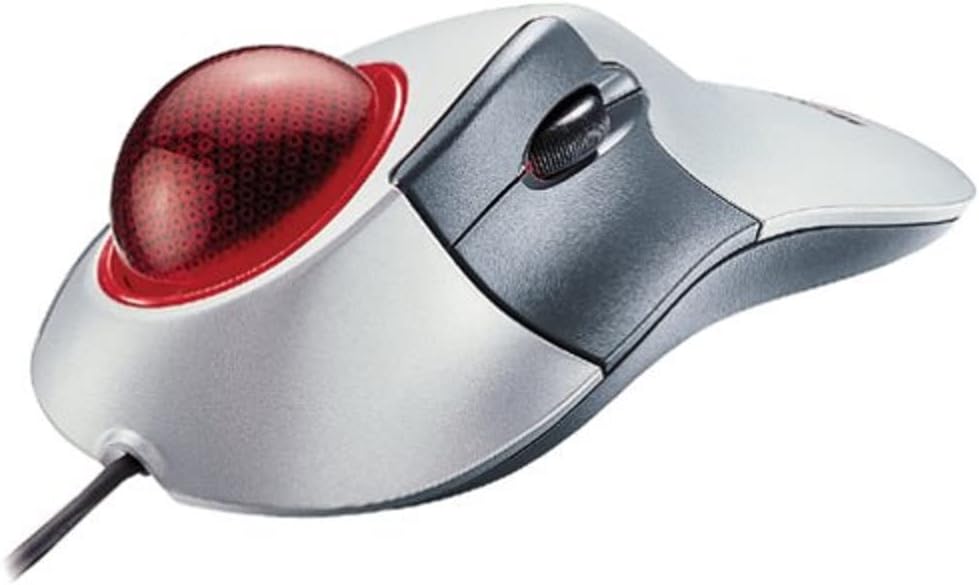

Microsoft Trackball Explorer
Product ID: 1780309
Details
- BrandMicrosoft
- Colorsilver and
- Connectivity TechnologyPS/2 USB
- Special FeaturePortable
- Movement Detection TechnologyOptical
📏10m range
🔋Battery powered
🖱️Trackball precision
🖥️ Elevate your workspace with precision and style!
The Microsoft Trackball Explorer combines ergonomic design with advanced IntelliEye optical technology, featuring 5 customizable buttons and a scrolling wheel, all in a sleek silver and gray finish. Perfect for right-handed users, this portable trackball offers a 10-meter range and is compatible with various Windows operating systems.
| ASIN | B00005853Z |
| Additional Features | Portable |
| Antenna Location | Office, General Computer Use |
| Are Batteries Included | No |
| Are Batteries Required | Yes |
| Best Sellers Rank | #202 in Computer Trackballs |
| Brand | Microsoft |
| Built-In Media | IntelliPoint software |
| Button Quantity | 2 |
| Color | silver and gray |
| Compatible Devices | Personal Computer |
| Connectivity Technology | PS/2, USB |
| Customer Reviews | 4.3 out of 5 stars 93 Reviews |
| Hand Orientation | Right Hand |
| Hardware Platform | PC |
| Item Weight | 1.3 Pounds |
| Manufacturer | Microsoft |
| Mfr Part Number | D68-00007 |
| Minimum Required Operating System Version | Windows 95 |
| Model Number | D68-00007 |
| Movement Detection | Optical, Trackball |
| Movement Detection Technology | Optical , Trackball |
| Number of Buttons | 2 |
| Operating System | Windows 2000, Windows 95, Windows 98 |
| Power Source | Battery Powered |
| Range | 10.0 meters |
| Special Feature | Portable |
| Style Name | Modern |
| UPC | 659556304836 659556304843 |
| Unit Count | 1.0 Count |
| Warranty Description | 3 Year |
E**H
Best trackball or mouse ever
I've been using trackballs since they came out and have tried out a good number of them. The MS Trackball Explorer tops all of them. I believe this so much, that I own four of them and will likely buy more of them. It's set up extremely ergonomically for right hand users. Just plop your hand on top of the trackball and your fingers are already over almost all of the buttons. Left click being directly under your thumb, the scroll wheel being just to the right of it and two of the extra buttons being under your pinky and ring fingers. With your pointer and middle fingers on the trackball, you're set to go. The only button that takes any effort whatsoever is the default right click button, which is located just over the scroll wheel. You just lift the thumb a centimeter and then click it. If you need to use right click frequently, it may not be in an ideal location for you. However, the configuration software makes swapping out button configurations simple. My layout changes the pinky button to right click and the ring and secondary thumb buttons to back and forwards, respectively. It ends up working out very well for me. As far as I know, the package doesn't include any software for linux or mac machines. Then again, I'm not sure I could really expect a microsoft product to support macs or linux. As a heavy computer gamer, I can tell you that the responsiveness of this trackball is top-notch and unlike all thumb-based trackballs, you're at no disadvantage as compared to a mouse-user. The buttons are pretty damn durable. I have one trackball explorer that I bought around 2001 and it's only now starting to wear out. It's still responsibe after 4 years of heavy use, but the buttons are starting to feel mushy. In fact, I took one of my Trackball Explorers to Iraq when I deployed there last year. While everything was feeling the pain of an extremely sandy environment, this thing kept on working. If it has any faults, it's not laid out very well for left handed users and that the trackball gets dirty fairly often. Our fingers aren't as clean as we think they are, it seems. At any rate, the ball comes out easily, and cleaning it involves sweeping the inside of the ball with a finger and then wiping off the ball on a shirt or something. It takes about 10-15 seconds about every three days or so for heavy users that eat at the keyboard, your mileage may vary. All in all, this is the best input device of its kind that I've ever used and I'm disappointed to see that Microsoft isn't still cranking them out.
C**N
After 6 months of use...
I have been using the trackball explorer for about 6 months and I have to admit, it is good. I am an avid gamer, and I was very reluctant to switch to a trackball, but my regular mouse was killing my shoulder so I had to do something. After buying the new mouse I got used to the whole trackball thing in only a few days, and after a few weeks I was good enough to even play some first person shooters. (Btw, by now I can play any game just fine with this mouse. In fact, I recently beat Delta Force Black Hawk Down using this mouse, and I can hold my own in multiplayer.) Also my sholder stopped hurting. Here is a breakdown of the pros and cons of this mouse as I see them: Pros: 1 Ergonomic (ie. will help with a RSI and/or similar) 2 Very smooth movement, once it breaks in. 3 Good buttons 4 Scroll wheel 5 Good software, easy to use and lets you do a lot of stuff (like re-assigning the buttons, or changing the speed...) 6 Accuracy. If you slow down the movement, this mouse can be ridiculously accurate. When I first bought the mouse I couldn't believe it! 7 The ball. It is very tough; I've used the mouse for 6 months and there isn't even a single scratch on the ball. Also, its pretty big, but not too heavy. Cons: 1 Sweaty. Maybe I just have weird hands, but the long plastic part were you rest your palm makes my hand sweaty and uncomfortable. 2 You have to clean it. When I bought it, they made it sound like you literally never have to clean it at all because its opticle. Not true. I have to clean it like once day to keep the motion smooth. (But I must admit, it only takes like 10 second. all I do is pop the ball out and use my finger to wipe the dust off the 3 metal contacts.) 3 Hard to hold down both the left and right mouse buttons at once. (but it is do-able, you just have to scoot your hand forward about 1 inch.) 4 Not ambidextrous. I like to switch hands every once in a while and this mouse is pretty annoying to use left handed. Finally, this mouse looks cool.
O**Y
the best pointing tool I've ever used!
Mice suck. They just do. How many times do you reach the end of your mouse pad before you get the pointer where you want it? Then you have to pick up your mouse, move it to the middle of the pad, and keep going. What a pain. The solution is the trackball. Of the trackballs I have tried, this one is by far the most ergonomic and comfortable to use. The layout of the ball versus the buttons is brilliant, and the contour of the device fits the hand perfectly. You don't want a trackball where the thumb controls the ball. You're just begging for tendon problems. The thumb is not for pointing. This one puts the click button under the thumb, and the index finger controls the ball. It's great. However, its ergo-ness is designed for righties. South-paws probably won't like it (though Logitech has some that are ambidextrous). And what's really cool is that you can reassign the buttons if you don't like the defaults (though the defaults are pretty good). This is easily the best pointing device I've ever used.
T**.
Couldn't wait to get it!!!
I ordered this in replacement to a wireless optical mouse that I had for about a year and a half. I am still using this, I got sick of carying it with my laptop. Every time I wanted to use it, I had to get batteries out... The whole song and dance. When I started looking, I was looking for a "mini" wireless notebook mouse, something not as cumbersome as the last mouse I was carrying. I read the reviews on any of the mice that looked like they were worth the money, and they all didn't seem like there were any that were worth the money. Most of them said that they lost the connection intermittently and had trouble connecting. I thought, what is the next step. I didn't want to get a mouse with issues like that, and I though of the trackball we use at work, and figured I would check them out. A trackball was more practical for me because everyday, I take a train into school, two hours each way. I use my laptop on the train, and because I don't have a flat surface to use the mouse on I figured the trackball would work nicely. Its great. I have read some reviews about people saying the motion on-screen is jumpy, why I don't know maybe they had a defective one or their computer didn't want to communicate with it they way it should. If you read the Technical data on the trackball Explorer, it resamples 1,500 times a second. Just think about how smooth the cursor moves around the screen if it resamples that often. My dad smerked when I showed him what I got, because he usually follows me in what I buy, he was like "It's not wireless". I think that is a small price to pay for such a nice pointing device.
S**N
Mixed review
I had a Logtech Trackman Marble FX for about 8 years before the right mouse button stopped working... But that's another story. You can read my review about that one if you want. I'll go straight to the pros and cons: Pros: Ergonomic shape, nice large ball operated with your fingers and thumb. 4 mouse buttons and a clickable scroll wheel, perfect for gamers. All buttons are reassignable to perform any function, or to do a variety of functions within windows. Note that the bundled software calls middle click "autoscroll," and buttons 4 and 5 are called the back and forward web browser navigation buttons. Good for your average user, but a techie like me likes the buttons to be called what they really are. It's wired, unlike the Logitech version. Wireless products are a solution looking for a problem for me, and I don't like shelling out the extra dough. You can reassign buttons to do different functions on a per-program basis. For games I have it assigned to the default button setup so that the game recognizes all the buttons as mouse1, mouse2, etc. Cons: Very imprecise at high sensitivity settings. The cursor will actually move in steps of several pixels. This might be because the dots on the ball are rather large, but not certain. The solution for those who like high sensitivity settings is to set it for medium sensitivity and turn on low acceleration. The non-linearity that results makes you feel a bit disconnected from the onscreen cursor, however. Not pros and cons, just observations: By default, the left-right-middle mouse buttons are operated by your thumb instead of your fingers, unlike a regular mouse. This can be reassigned, I've reassigned the far right button to right click because it's a bit more intuitive, and I have a button bound to shift so I can use it and the scroll wheel for forward-back navigation in my web browser. It takes a few days to really get used to, like the transition from a straight keyboard to a "natural" one. It looks like there's three red LEDs inside, but only one is actually near a sensor, the other two are just there to make it glow an ominous red.
G**T
This is a great product.
I bought My first Microsoft Tracker about 20 years ago and have always loved it but in the last few, it has become increasingly difficult to use — pretty old at this point. I had looked for for a replacement 3 years ago but couldn’t find one at a reasonable rate so gave up. This year I finally became desperate and looked again. I was willing to pay a lot more! Found it!! At a good price too. So happy!! Works so well that it even cured a pain which was developing in my hand. A benefit that I didn’t even imagine!! Our son likes the Tracker so so I bought him one for Christmas and he’s as happy as I am.
R**R
Not bad
I own a Logitech Marble Mouse and a Microsoft Trackball optical mouse. I've been using Microsoft's trackball optical mouse (a thumb trackball) for over a year now, and it's starting to hurt my thumb joint. So I bought this one. So far it's working great for me. The egronomic design is great and the trackball fits my palm perfectly and comfortably. The optical ball is smooth and percise. If you're considering this item, there are a couple of issues you might want to consider: 1- fitting your palm: in addition to this item, I also tried Logitech's Cordless Trackman (Index-finger trackball) and Trackman Wheel (Thumb trackball). In comparison to Trackball Explorer, Cordless Trackman's ergonomic design isn't as good; with my carpel tunnel syndrome symptoms, I find it uncomfortable to "grab" the entire trackball; Trackman Wheel on the other hand, is a little too small for my palm, again, CTS makes grabbing a small trackball quite uncomfortable. So it really depends on how you like to hold the trackball, if you like to lay your own out like I do, this might be the one for you, but nonetheless, go to Bestbuy or RadioShack to get a feel of the trackball before purchasing it - that's the safest way. 2 - Buttons: In this trackball's defense, there is a sealed, brand new Intellipoint CD right under the trackball that contains the updated software for mice configurations, if you don't like the setting of the buttons, you can change them anytime, to ANY confiruation you want. I too found the default configuration awkward, and I changed it, now it works just fine. (I just resent those who diss a good product because they don't know how to install the included software.) 3 - left-handedness: this trackball is for right-hand only. This is a great product overall, it's definitely worth my price. I am not here to promote this product, but to share my experiences. I have not yet seen a trackball that truly "sucked", just ones that don't fit my palm. So, before purchasing the trackball I suggest that you see a sample at BestBuy or stores a like. :)
R**A
New technology? Not with this product!
As a Trackball user, I've been happy using my first Trackball, a Logictech. One of there first I believe. It simply wore out and I replaced it on November 5,2002 with this Microsoft Trackball. I was at first, happier than a new kid with a bike. I could go anywhere with it, and finally, somebody decided that using the internet does indeed have different demands: include a forward and back button on the mouse! 8 months later,around April or May 2003, I removed my dead mouse. It became unstable and wouldn't function at all. Microsoft Fed Ex-ed me a brand new replacement. Now thats service. On November 8, 2003, this replacement mouse also became unstable and I had to remove it: I can't do graphic work with a mouse that won't function. But this time, I have already ordered a non-Microsoft Trackball. They do need to perform a final test on this series of mice. 8 months is way too short for a $49.00 mouse! No, I have not contacted Microsoft. I'd never hear a word. I won't waste my time. I really wish this mouse would last. It incorperates many fine features that make it a mouse of choice.
Trustpilot
1 day ago
2 days ago