We remain fully operational. Our teams are working around the clock to ensure your deliveries continue safely.

DOWNLOAD THE APP


Copyright © 2025 Desertcart Holdings Limited
DOWNLOAD THE APP


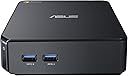
🚀 Tiny Titan: Big performance, zero bulk.
The ASUS CHROMEBOX-M004U is a sleek, ultra-compact desktop powered by a 1.4 GHz Intel Celeron dual-core processor, 2GB DDR3 RAM, and a 16GB SSD. Designed for lightning-fast startup and seamless cloud integration with Google Chrome OS, it supports multi-display setups via HDMI and offers expandable memory up to 4GB. Ideal for professionals craving a minimalist yet powerful device for multitasking, media streaming, and cloud-based workflows.
| ASIN | B00IT1WJZQ |
| Additional Features | Ultra Small Form Factor |
| Aspect Ratio | Unknown |
| Best Sellers Rank | #277,898 in Computers & Accessories ( See Top 100 in Computers & Accessories ) #8,082 in Mini Computers |
| Brand | ASUS |
| Built-In Media | Chromebox - ultra small form factor, Power adapter |
| CPU Model | Celeron |
| CPU Model Number | Celeron 2955U |
| CPU Model Speed Maximum | 2.8 GHz |
| CPU Speed | 1.4 GHz |
| Color | Midnight blue |
| Compatible Devices | [INFERRED: Keyboard, Mouse, Monitor, Printer, Smartphone, Tablet, Projector] |
| Connectivity Technology | wireless |
| Cooling Method | Air |
| Customer Reviews | 4.2 out of 5 stars 1,352 Reviews |
| Display Resolution Maximum | 3840x2160 |
| Global Trade Identification Number | 00886227694921 |
| Graphics Card Description | Integrated |
| Graphics Card Interface | Integrated |
| Graphics Coprocessor | Intel HD Graphics |
| Graphics Description | Integrated |
| Graphics Ram Type | DDR4 SDRAM |
| Hard Disk Description | SSD |
| Hard Disk Interface | Ethernet 100Base-T |
| Hardware Interface | Ethernet |
| Human-Interface Input | Touchscreen with Stylus Support |
| Item Dimensions | 4.88 x 4.88 x 1.65 inches |
| Item Type Name | Asus CHROMEBOX-M004U Desktop |
| Item Weight | 2.2 Pounds |
| Keyboard Description | Standard QWERTY Keyboard |
| Keyboard Layout | QWERTY |
| Manufacturer | ASUS |
| Memory Clock Speed | 1600 MHz |
| Memory Slots Available | 1 |
| Memory Speed | 1600 MHz |
| Memory Storage Capacity | 2 GB |
| Model Name | CHROMEBOX-M004U |
| Model Number | CHROMEBOX-M004U |
| Model Year | 2014 |
| Native Resolution | 3840 x 2160 |
| Number of Component Outputs | 1 |
| Operating System | Google Chrome OS |
| Optical Storage Device | DVD-R |
| Personal Computer Design Type | Mini PC |
| Power Plug Type | Type A - 2 pin (North American) |
| Processor Brand | Intel |
| Processor Count | 2 |
| Processor Series | Celeron |
| Processor Socket | BGA 413 |
| Processor Speed | 1.4 GHz |
| RAM Memory Installed | 2 GB |
| RAM Memory Technology | DDR3 |
| RAM Type | DDR3 SDRAM |
| Ram Memory Maximum Size | 4 GB |
| Resolution | 3840 x 2160 |
| Security Features | Unknown security features |
| Specific Uses For Product | personal, gaming, business |
| Style Name | Celeron |
| Total Number of HDMI Ports | 1 |
| Total Usb Ports | 4 |
| UPC | 803982791658 886227694921 |
| Video Output | HDMI |
| Video Output Interface | HDMI |
| Video Processor | Intel |
| Warranty Description | 2 year coverage for labor, 2 year coverage for parts |
| Wireless Compability | 802.11abg |
| Wireless Network Technology | Wi-Fi |
| Wireless Technology | Bluetooth, Wi-Fi |
K**R
MORE ON FANTASTIC LITTLE COMPUTER!
Fantastic little gadget! I've had the Asus Chromebox M004U, the inexpensive one-$169.00, 2GB ram, 16GB SSD-for a little over a month and from using it, I'll state that it is better than advertised. When the box arrived from Amazon, it didn't look big enough for a "real" computer. Bear in mind the Chromebox is only 5" x 5" x 1.5" in size. I took out the Chromebox, plugged in the power supply and looked for a cable to hook up a monitor. Neither a DVI or a VGA plug will work. I did find an HDMI-to-HDMI cable which fits the Box, but not either of my monitors. I was thinking about buying a new monitor when I remembered that my 32" LG TV had a second HDMI port. It's mounted on a swing-arm close to my computer desk in my "man-cave" so I can catch football games and NASCAR away from the rest of the family. I pulled the arm & TV over closed to the desk, pressed the power switch and got a picture. The set-up went quickly and easily. I already use Google Chrome browser and the Chrome operating system is based on it so I was functional on that part. I entered my wifi password and, just like that, I was on the web. All my favorites were there just like on my PC. I surfed around to several sites and everything looked as normal. I should mention that everything was fast. I also already use Gmail, so the email part went fast. It's exactly the same as Gmail on my PC. I think you can set it up for Outlook, but since I use Gmail, I didn't bother to try that. It comes up fast. Someone told me 7 seconds. I have counted 1-thousand, 2-thousand... and quit because I never got over 7-thousand. You can't get to what you have on your PC hard drive. If you have saved it to Skydrive, you can easily find it with your Chromebox. I was getting worried. Everything was going quickly and smoothly, then I hit a snag. I went looking for a file, any file, and couldn't find one. Well, Toto, we're not in Windows land any more. We have to go see the Wonderful Wizard of Google. Let me give you a translation from Windows to Google for some I have picked up. 1. First, think of your Chromebox as a big Android phone. 2.There are a group of icons in the lower left side of the monitor just like Windows. Google calls this line of icons the SHELF. 3. The first icon is black with 9 little squares like a keypad. This is effectively your Start button. In Google-ese, it's your APPS. 4. You can move apps to and from the shelf. Right click on the icon in your apps and select "Pin to shelf." If the "Pin to..." sounds familiar, it's just like an Android phone. 5. Somewhere in your apps you'll see a blue, green & yellow triangle. This is Google drive. Think of it as your C: drive. You automatically get 15GB G-drive space free. When you buy a Chromebox or Chromebook laptop, you get another 100GB free for two years, as I recall. I was wondering what Big G was going to hit me for extending the 100GB. I checked and when I did, it was $2 per month. Pretty cheap. 6. I already had Microsoft Skydrive, (or is it Onedrive or is MS trying to confuse us). It also works just like Google drive. 7. If you are paranoid about storing things in the cloud, you are in trouble because everything is automatically stored in your cloud. 8. Speaking of saving, don't look for a save button. There is none. Remember, everything is automatically saved to the cloud. 9. You can hook up an external hard drive, but I haven't tried that. The Chrome computers DO NOT support CD or DVD drives yet. 10. Google Docs can read all my Word files and save as either .docx or Google files. No problem here. 11. Amazon Prime videos work just great through the Chromebox. So does Kindle for books (Kindle Cloud). Bottom line: Since I got this little jewel a month or so ago, I have been on my PC maybe a dozen times. Some of those were to start moving more pictures and notes on radio control airplanes(my hobby) to either Skydrive or Google Drive. The Chromebox makes my PC seem slow and antiquated. Sure it doesn't do Photoshop and others, but for surfing, watching videos and movies, reading Kindle books and doing the occasional doc or spreadsheet, it's been excellent for me. For what I do at home, I'll take a Chromebox over a PC any day. Added May 10, 2015: It just dawned on me that I haven't turned on my Windows PC in 2 weeks! It's still fast. It books up fast (7 seconds to the password prompt-I timed it). It shuts down fast-5 seconds. I've yet to see a prompt like, "Do not turn off or unplug your computer. Installing updates 1 to 21." Google print works fine, even from my phone-a Nokia Windows phone, no less. It goes through wifi & email. Double glad I spent the $160 for it.
G**E
Great as an HTPC (XBMC) and as a Linux desktop.
I have two of the Chromebox M004U (Celeron) models. (three now, see updates below) I installed an alternative BIOS (Coreboot) on both of them so I could replace Chrome OS. One of them is being used as an HTPC running the XBMCbuntu distribution (version 13.0 upgraded to 13.2). Stock hardware (Celeron, 2 GB RAM, 16 GB SSD). It handles any video I throw at it perfectly, even the ~45Mbps video from my DSLR camera. I don't have any Bluray rips, but I have no doubt it would work perfectly with them. It drives my 1080P television without any problems, both video and audio over HDMI. My media library is on a USB 3.0 attached HDD and I can get 140MB/sec sequential (not random) reads from it. I'm setting up the other one as a desktop PC for my kids. I installed an additional 2 GB of RAM and upgraded the M.2 SSD to 128 GB. This too has the custom BIOS installed. Edbuntu worked without issue, but I ditched it because of Unity. It's now running Linux Mint. All of the educational software I have installed (Gcompris, Tuxmath, Tuxpaint, etc) works like a charm. My favourite software on here, an astronomy program called Celestia, works great! I've installed optional higher resolution textures for all of the planets. It runs at an average of 30-45FPS with some dips when zooming in and out on planets with 32K and 64K textures. All of this while driving a 1600x1200 ASUS IPS display at full resolution with Celestia maximised (filling up the whole screen). And I have the Chromebox mounted on the back of the monitor with the included VESA mount plate. Linux Mint runs like a charm overall. Running Firefox and LibreOffice also works really well. And booting from a cold state takes seconds. I am very, very satisfied with these little Chromeboxes. Edit (2014/12/02): I picked up a third one on black friday for $110 just to play with, was specifically interested in loading OpenBSD on it. 5.6-stable doesn't work because of the lack of USB 3.0 (xhci) support, but 5.6-current installed without issue. The wireless adapter wasn't detected, but the Realtek ethernet device works. I have it driving a 1920x1200 display over HDMI. What a fantastic little piece of hardware! Edit (2015/01/30): I've been using this model Chromebox for about six months now. I have not encountered any problems. Still as zippy as the day I got them, cool to the touch, and stable. I have three of them and I want to get more! Just to recap, I've installed various Linux and BSD based operating systems on these puppies: * FreeBSD (so I could play around with bhyve) * OpenBSD * Linux Mint * Debian * Ubuntu * Edbuntu * XBMC Live (Ubuntu based) I love these little machines! Edit (2016/04/05): I'm still using three of these computers. One running XBMC, another running Linux Mint for my kids, and the third one now has CentOS installed on it. The second m004u with Linux Mint has been used for a few months now to play Minecraft. It gets ~30-45 FPS without any add-ons installed at 1920x1200 resolution. My kids have been having a blast with it. The third m004u with CentOS had its storage upgraded to a 256GB m.2 drive and 16 GB of memory was installed. It is running Xen 4 (Xen4CentOS) and I have eight different virtual machines running on it: * repository server running Apache and SSH. * shell server (for remote access) * minecraft server (has had up to seven users on it at the same time) * minecraft pocket edition server (running ImagicalMine, has had up to five users on it at the same time) * Three separate web servers (LAMP) for some friends and family member's websites * UniFi Controller Most of these virtual machines are running CentOS 7. The UniFi Controller VM is running on Debian. When a lot of people are playing Minecraft I've seen some slow downs, but for the most part the little box is running like a charm and has been stable for a full year. These machines are awesome!
T**L
I love this little system
I love this little system. Boots up and shuts down in seconds. Lightning fast, haven't experienced any bog downs what so ever, Sure it has its' limits, but if you need something for web browsing, email and basic Office Online then I suggest this little box. It's smaller in width than a mouse pad, very light and takes up little space. I love the 4 USB 3.0 ports, HDMI, speaker and card reader ports. I used this today to stream a game from NFL Game Rewind, I experienced no buffering at all. I own 3 Windows based systems (2 laptops, one is a core i-7 with 8 gigs of ram and 1 tower which is an Amd quad-core processor with 16 gigs of ram with a good video card) with the Windows systems I would get buffering or lag even after turning off all extensions in my browser and shutting down any unnecessary running applications. Is this going to kill Windows or Mac OS? No, but it's a fast little machine that does what it's made for. I also love the fact that I don't have to worry about the kids getting on it and infecting it with viruses, at least not yet. If you want to hook it up to the VGA port of your monitor like I did, I inserted a link below for the adapter I ordered. I use the DVI for my main desktop. Also, if you are looking for a KVM switch to share a wireless keyboard and mouse with your main system I inserted that link as well. I've tested this KVM switch with 3 different Logitech wireless keyboards and 4 different mice (one was a Microsoft and the other 3 were Logitech). I just plugged the KVM switch into the usb port and it instantly recognized it. I have also plugged in my Western Digital Passport 1GB external HD, my 2GB Seagate Expansion Drive, a 16GB and 32GB flash drive and a 32GB SD card into this and they all work great. For what it is, this is the best machine that I have bought in a long time. Chrome OS is very basic and there is no learning curve to it in my opinion. For the price I suggest that anyone who is looking for a no frills system, then look no further. This is the one to get hands down! Cirago DisplayPort to VGA Active Adapter http://www.amazon.com/gp/product/B005AT2LI0/ref=oh_aui_detailpage_o00_s00?ie=UTF8&psc=1 Tek Republic TUS-200 USB KVM Sharing Switch http://www.amazon.com/gp/product/B00FEM3OKM/ref=oh_aui_detailpage_o08_s00?ie=UTF8&psc=1
F**E
Hey! I Really Love This Thing... And It Is Not For Me.
I bought it to replace an old desktop that was running Windows XP and a processor that kept the pages hanging on the interwebs hanging... hanging.... and finally, there was just too much going on with the sound issues and programs loading at an irritatingly slow speed... and then, yup! you guessed it... hanging! Since I am the "go-to" person when things go wrong with electronics, I decided to examine the needs of my current victim... er, client... okay, husband... and realized that printing was seldom done from the old computer, he used it as a web surfing machine and nothing else. The man does not "do" social media or e-mail either, so why bother with getting the best possible specs on video cards, processors (love my i7 machine, but he could care less), disc drive, etc... I have to tell you that since I purchased this Asus Chromebox, I have only had to address the audio issue (input with headphones or via HDMI) twice. No more troubleshooting Windows hanging and web pages cycling. This thing is fast in responding to anything web-related. Updates are fast (turn it off and it turns itself back on in a couple of seconds. Update done! no more "please do not shut your machine until all 25 windows updates are done..." Another plus is that it is wireless or can be connected directly to the modem. When streaming to the Chromecast in the next room there is no buffering, lag, or sync issues. (Our wireless is good but there are too many peak and valleys to allow for a consistent live-streaming quality) It has a usb port that has never been used but I imagine it could be useful at some point. By allowing it access through my Vista machine, it prints directly to our wireless Samsung printer that is several years old. The small-form factor is perfect to keep the desk clutter-free and it can easily be placed on a wall behind the monitor, or hooked up to the back of the monitor (our monitor has this capability) Conclusion: A perfectly simple web browsing machine if you like Google as your browser. If you prefer a different browser and would like to tinker and customize this box with a different operating system and more memory, there are tutorials on the web that will make it easy for you do something with this box than its intended purpose. Paired with an inexpensive Logitech keyboard mouse for around $20 and it works flawlessly. Link to Amazon's product page: http://www.amazon.com/Logitech-Wireless-Combo-MK270-Keyboard/dp/B00BP5KOPA/ref=sr_1_1?s=pc&ie=UTF8&qid=1426890397&sr=1-1&keywords=logitech+mk270
S**L
Fast, efficient and a bargin!
Disclaimer: I am a long time geek, Microsoft and Apple user, and developer. I began my "grand" experiment with Chrome OS when I purchased the popular Samsung Chromebook. To my surprise, it was not the neutered browser with a keyboard critics like Paul Thurrott have loudly proclaimed. It completely replaced my heavy Toshiba Satellite laptop updated to Windows 8. I was becoming smitten with instant on, reduced exposure to malware and even Google Docs! When in bed or simply catching up on news, I used my Asus 8.0 RT tablet and became reliant on touch when not working on projects requiring a desktop computer. I longed for a touch Chrome OS tablet and was a perfect target customer for the Acer 720P. My 720P Chromebook has almost completely replaced my RT tablet. I am frustrated by the seemly endless disruptive Windows updates and hooked on the limited yet user-friendly Chromebook devices! I wanted to use Chrome OS in my office with a larger display. The Asus Chromebox was tempting when introduced at $179 but hard to get through Amazon. Then the price started fluctuating and was only available through sources selling on the Amazon site but not by Amazon. When supply caught up with demand, Amazon again offered it for $179 and two day prime shipping. I could not resist and have my Chromebox connected to our HP w2408 monitor. I wanted to share my monitor with my HP Windows 8.1 tower and the Chomebox. After reading a few reviews and spec sheets, I purchased a Portta PET0301S 3x1 HDMI Switcher for less than $10.00 and a two cable Amazon Basics High-Speed HDMI package. The switcher works flawlessly and the IR remote control makes placement of the small switcher flexible. I am using a Logitech K400r wireless keyboard/track pad with the Chromebox and, though not as good as my full PC keyboard and wireless Logitech Track Ball, it is usable and easy to put aside when switching between Win PC and Chromebox. I use a small Creative Labs Travel Sound speaker connected to the audio out for most audio but my beloved LG 700 Bluetooth headset connects without issue and works without the pauses and skips I sometimes experience when paired with my Windows 8 phone and RT tablet. While Microsoft struggles with getting Bluetooth audio right, Google offers rock solid software support for basic stereo audio streaming! BRAVO! I loathe the never-ending Windows updates and the sinkhole they can become if a machine is left offline for more than a week. My Chromebox updates with much- appreciated stealth and is as fast and as efficient as most other reviewers claim. I have become a fan and can easily recommend Chrome OS devices to those who understand their limitations.
M**.
Solid value: Good bang for the buck as a media computer if you have a monitor and keyboard. Requires more memory to avoid lag.
We bought this to use to browse the web and do some work related stuff using our wall mounted TV. We already had a wireless keyboard, and the TV so this was a great deal at under $200. So far we have found the following: 1. There are some lag issues when it comes to streaming video in the Chrome Browser so have ordered a 8GB memory card to put in the empty slot: Crucial 8GB Single DDR3 1600 MT/s (PC3-12800) CL11 SODIMM 204-Pin. While it is not a matched upgrade (2x2 or 4x4 or 8x8) it should work just fine, and I have paired a 2 with a 4 on my laptop with no trouble. Look around and you will see that your memory will work at the slowest shared speed - we are ok with that. 2. It is a browser based OS. So, there are some issues if you do any work (docs, etc.) using Google Drive/Google Docs. First, many docs, spreadsheets, etc., may need to be downloaded. This is easily done using the Memory Card slot to expand your memory, or through an external USB HD. We are using the memory card slot to download files, edit them, then put them in Google Drive to share, etc. This is a bit of an annoyance, but not much different from saving a local version in Windows, then saving to Drive to share. We have only a 32g SD card, and this works for most everything we do document wise. I could see if you had a lot of data how a external HD or SSD or even a large capacity SD card would be the way to go. We are fine using this. Adding the SD card was easy. You pop it in, format it, and then set the settings to make the SD card the download location default (here are instructions: https://support.google.com/chrome/answer/95574?hl=en-GB) 3. It could be better - the OS that is. It would be nice if like Ubuntu you could use things like Google Docs offline in an easier way. We are always connected to the internet when we use this so we have no complaints, but I can see how some folks might want to be sure to have the ability to use a heartier version of the OS - just like you can use your Android phone when not connected to the internet or wifi. It would seem that Google needs to build out the OS to offer a "lite" and "advanced" version for those who may want a little less of a "netbook" experience from this device. Overall, this is perfect for what we use it for, and was a good swap out for the 5 year old laptop that was filling in as our "media" computer.
J**N
Interesting device
The Chromebox has met my expectations as far as performance goes, I'm disappointed that I cannot change some settings such as font size. Some of the Apps I want to use are not available for Chrome, I.E. Tab is not supported either so any I.E. Apps simply do not work. The streaming of Video from Amazon Instant prime as a freebie for a month was a great idea. I found that it would hang up several times during a movie or TV show. I was still able to surf the net when that occurs so it's not my connection. many of the offerings are in low resolution so I was very disappointed that there were not setting to allow me to see HD. Google Play really needs to have a section dedicated to the Chromebox so you can research what will work in their OS environment. Do your research on any specific app you intend to use. That's true of any device. It's very convenient to install and get running, I'm very satisfied with that aspect,it was plug and play...no hiccups! Overall It's a good value to get Internet access on my big screen.to go surfing and do emails, play some simple games. It's small and does not use much power. I'm not expecting much more out of it so I'm happy.
J**K
Neither fish nor fowl
For under $200, it's not a bad little box. However, it didn't work for me as planned--as a computer for the living room--because it won't talk to my HDTV via HDMI. Though the TV is older, this is the first and only device out of many that I've hooked up to that TV which won't work with it. The Chromebox does talk to my newer monitor via HDMI, so that's how I'm using it right now. Much Googling and forum delving have not revealed any ways to work around the problem with communication with my TV; apparently it's a known issue with Chromeboxes (and Chromebooks) that they simply won't complete the HDCP handshake with some older HDTV models. It's kind of an odd beast because it's neither fish nor fowl. It's not really a single-purpose streaming box like a Roku or Chromecast. Those work better for that sort of thing, and are a small fraction of the price of this box. It's not a full-on PC, since it can't run Word or Excel (though it can run Google's web-based clones, which I've consistently found to be -almost- good enough). There are additional apps that can be installed, like Solitaire...and that's pretty close to the entire list of interesting apps so far. Which is to say that it's handy for checking email and working on Google Docs and surfing the web, which is pretty much what I wanted it for, but it is a bit frustrating to hit the edge of its utility envelope so quickly. I'm keeping it because I plan to wipe ChromeOS off of it and install Linux. I'm hoping that Linux might give me enough flexibility with the monitor settings that it will talk to my TV, though I expect that the communication problem is at the HDMI hardware/firmware level somewhere. Also, Linux is more fun to tinker with. I'll post an update to this review if the OS change warrants it. (As a side note, I found it interesting to learn that ChromeOS is Linux with a Chrome wrapper around it, not a standalone OS based on the browser. It's not quite as lightweight as vendors would have you believe, and it makes me think that the OS auto-update feature isn't quite the magic gravy it's been sold as. It's likely a complex process under the hood, one which might hiccup and cause problems down the line.) Oddly, the Bluetooth built in to the Chromebox doesn't seem to want to connect up quickly to either keyboard I've tried using with it (a Rocketfish and an Apple). It does connect eventually and works fine after that, but it takes several seconds to establish connection. I stuck a $5 BT USB adapter in the Chromebox and both keyboards connect quickly and work fine with it. Plus, using the USB dongle means they're available while ChromeOS boots, so I can use them to kick into Developer Mode. On the plus side, it's a fairly speedy little box due to its SSD and reasonably non-anemic Celeron(!) CPU. It boots really fast. However, unless I have it in Developer Mode, it requires that I enter the account's password before it is usable. I guess that's a good security feature, but it's one I'd like to have as an option rather than a requirement. I added 2 GB of RAM as other reviewers recommended, which really makes a difference in responsiveness when I have more than a handful of browser tabs open. It's pretty good at streaming video at 1080P, though I see more hiccups and dropouts than with my Roku or Amazon Fire stick. Overall, the Chromebox is not great, but not terrible. A reasonable deal for the price. It reminds me a lot of the old WebTV gadgets from a couple of decades ago: almost a full-fledged computer, but not quite. Is it a good choice for hooking up to the living room TV? Honestly, I'm not sure. An Android tablet or iPad are significantly more versatile, and you can get a pretty decent tablet for the same price as this Chromebox. I think it will be fun to tinker around with and install Linux on, but beyond that, I doubt I'll bother with switching to it from the Roku when I'm watching TV, or dig up its keyboard and mouse (and get them connected via Bluetooth and type in my password) to check email rather than just reach for the iPad. Update 1/4/2015: I used John Lewis' excellent CoreBoot package to provide an almost-standard-PC boot loader, which then allowed the complete replacement of ChromeOS with Ubuntu Linux (or, really, just about any OS besides Windows, which is fussy on this particular hardware). Ubuntu boots and runs smoothly and quickly on the Chromebox. Video playback is at least as good as under ChromeOS, possibly a bit better. Ubuntu creates a 4 GB swap partition on the 16 GB SSD, and the remaining 12 GB are available for the OS and everything else. Switching to Ubuntu did not resolve the problem with the Chromebox not displaying on my older HDTV, but I didn't really expect that it would. It's easy to add apps, such as XBMC (now Kodi) to Ubuntu, though the current version of Ubuntu and the current version of Kodi aren't playing entirely nicely together. The Chromium web browser is also easy to add, to give the box back it's ChromeOS vibe. With the USB3 ports, it will be a snap to add a big cheap external hard drive for relatively slow media storage, and run the OS and apps off the SSD. Next up: Adding WINE and possibly MS Office. With Ubuntu, 4 stars. With the limitations of ChromeOS, just 3 stars.
Trustpilot
2 months ago
4 days ago