Buy anything from 5,000+ international stores. One checkout price. No surprise fees. Join 2M+ shoppers on Desertcart.
Desertcart purchases this item on your behalf and handles shipping, customs, and support to Austria.
🖨️ Compact power, wireless freedom — print smarter, not harder.
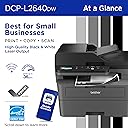
The Brother DCP-L2640DW is a compact, monochrome 3-in-1 laser printer designed for small businesses and home offices. It delivers professional-quality black & white prints at speeds up to 36 ppm, features a 50-page auto document feeder for efficient multi-page tasks, and supports versatile connectivity including dual-band Wi-Fi, Ethernet, and USB. With automatic duplex printing, eco-friendly toner save mode, and the Brother Mobile Connect app, it streamlines your workflow while reducing operational costs. ENERGY STAR® certified and backed by a 1-year warranty, it’s the reliable, space-saving solution for high-volume printing, scanning, and copying.


| ASIN | B0CPLFTPCV |
| Additional Printer Functions | Copy, Scan |
| B&W Pages per Minute | 36 ppm |
| Best Sellers Rank | #311 in Office Products ( See Top 100 in Office Products ) #1 in Laser Computer Printers |
| Brand | Brother |
| Built-In Media | AC Power Cord, Drum Unit, Toner Cartridges |
| Color | Black |
| Color Depth | 1 bpp |
| Compatible Cartridge | TN830, TN830XL |
| Compatible Devices | Laptops, PC, Smartphones, Tablets, iPhone |
| Connectivity Technology | Ethernet, USB, Wi-Fi |
| Control Method | App, Touch |
| Controller Type | Android |
| Customer Reviews | 4.3 out of 5 stars 3,306 Reviews |
| Display Type | LCD |
| Dual-sided printing | Yes |
| Duplex | Automatic |
| Hardware Interface | Ethernet, USB |
| Initial Page Print Time | 8.5 Seconds |
| Ink Color | Black |
| Item Dimensions D x W x H | 15.7"D x 16.1"W x 12.5"H |
| Item Type Name | Multifunction Printer |
| Item Weight | 25 Pounds |
| Manufacturer | Brother |
| Maximum Copies Per Run | 50 |
| Maximum Copy Resolution Black and White | 600 x 600 dpi |
| Maximum Copy Speed Black and White | 36 ppm |
| Maximum Media Size | 8.5 x 14 inch |
| Maximum Print Resolution Black and White | 1200 x 1200 Dots Per Inch |
| Maximum Sheet Capacity | 250 |
| Model Name | DCPL2640DW |
| Model Number | DCPL2640DW |
| Model Series | DCP-L2640 |
| Number of Ethernet Ports | 1 |
| Number of Trays | 1 |
| Other Special Features of the Product | Auto Document Feeder, Auto-Duplex, Energy Star, Envelope Printing, Epeat Qualified, Network-Ready, Scan To E-Mail |
| Output sheet capacity | 120.0 |
| Paper Size | Up to 8.5 x 14 Inches |
| Power Consumption | 470 Watts |
| Print media | Envelopes, Labels, Paper (plain) |
| Printer Connectivity Type | Ethernet, USB, Wi-Fi |
| Printer Output Type | Monochrome |
| Printer Type | Laser |
| Printing Technology | Laser |
| Processor Count | 1 |
| Resolution | 300 x 300 |
| Scanner Type | Flatbed, Sheetfed |
| Series Number | 2640 |
| Special Feature | Auto Document Feeder, Auto-Duplex, Energy Star, Envelope Printing, Epeat Qualified, Network-Ready, Scan To E-Mail Special Feature Auto Document Feeder, Auto-Duplex, Energy Star, Envelope Printing, Epeat Qualified, Network-Ready, Scan To E-Mail See more |
| Specific Uses For Product | Home, Office |
| Total USB 2.0 Ports | 1 |
| Total Usb Ports | 1 |
| UPC | 012502672685 |
| Unit Count | 1.0 Count |
| Warranty Description | 1 Year Limited |
| Warranty Type | Limited |
| Wattage | 10.5 watts |
Z**O
Brother Laser printers are fantastic, work without the fuss of most printers. Consistent and fast.
After suffering with overpriced ink and inkjet printers for years I finally decided to jump ship to a laser printer. This is leaps and bounds beyond a typical b&w inkjet printer in every way. The ink cost is lower, it prints faster, more consistently, no paper jams, why oh why didn't I switch to laser earlier? I had heard that Brother brand was highly recommended and I'm a total convert now. This printer just works out of the box. I hooked it up to my network and was printing in minutes. It also has an app but everything is totally usable without ever touching the app which I appreciate. Installing the ink cartridge was also very easy, it's designed so it's pretty difficult to not do it correctly. The scanner copier functions also work perfectly, no issues at all. Can't recommend Brother laser printers enough.
P**P
Works Great So Far! Reasonably Fast & Clear Printing - Convenient Wireless Connectivity
I have used Brother laser printers for years. I decided on this particular model, mostly because it offered just exactly what my small business and home office needs were. I have no use for a fax machine any more, so this printer and scanner was really all I wanted, and it seemed like a pretty reasonable value. I have tested it several times with various paper media. I print normal text documents, some with graphics, envelopes, and voucher checks regularly. This printer has handled everything really well so far. There was a bit of a learning curve with some odd sized envelopes, but I'm pretty sure my struggle was with the software I was using, not the printer. I did experience a couple of situations where the machine said there was a paper jam when using the front tray to print an envelope, but it was easily resolved. The quality and clarity of the print seems great to me. You can adjust the print density, toner ecology, etc. pretty easily. The machine itself has a heavy duty and durable feel to it, and I'm happy with how it has been working so far for me. WIRELESS CONNECTIVITY: I was reading other people's comments about having issues with this. I am going to share what I found worked best for me, and maybe that will be helpful for others. Since I have owned and used several Brother printers in the past, I've learned that getting the machine on my wireless network is easiest by simply using the machine's console push buttons. I know in the literature it says it should be discoverable by going through the steps outlined in the instructions after downloading their software. However, I've never had consistent luck with that process. I still download the software to make sure I have the right drivers and features loaded, but when it comes to getting the printer on my network, I just use the machine's console to find my router and then type in the password. It's a tiny bit tedious typing the password using the console buttons, but I've never had it not work for me. Honestly, seconds after doing that, the wireless printer was discoverable and available to all of my devices. I was able to print from my CPU, laptop, phone, tablet, etc. without any issues. I know that's not the only way of setting up the wireless functionality on these printers, but it's what I've learned causes the least amount of stress and frustration. I hope that's helpful. They provide details on how to accomplish this method in the accompanying literature that comes with the printer. At this point, I have no reason not to give this five stars. If something shoud change down the road, I'll be sure to update this review.
A**R
I don't dread printing anymore!
Unbelievably easy to set up and use. My last printer was not a Brother and I had to spend so much time setting it up, trying to connect to it, etc. it was ridiculous. This printer was so easy to connect to my wireless network. And the print quality is outstanding. It can even scan and photocopy and holds plenty of paper. I don't need to print a lot but when I do, I know it's going to print with no issues. I am so happy that I purchased this printer!
C**Y
I'm Satisfied.
Good printer. Setup wasn't too difficult. Installing the toner cartridge and drum assembly into the printer was easy. Wi-Fi setup was ok. I choose to set up my connection up without using a cable. I used the control panel on the printer itself. On the quick set up guide, step 8 gives good instruction on how to set the Wi-Fi up using the LCD screen, but one key step they left out is that after you enter you password (Network ID), you have to press AND hold the "OK" button to get it to accept. THEN, you'll see the accept message pop up. This maybe be a "duh" moment for some, but it took a few minutes for me to figure that out. After I did, the Wi-Fi connected instantly. Another issue I ran into was entering the password to download software on my computer. The password is located on the back of the printer. So, I would recommend maybe writing the password down or snapping a picture of it w/ your smart phone prior placing your printer to where it's going to go. Otherwise, once you get the printer situated, you may have to do some moving around and adjusting the printer (like I did) to get the password from behind the printer. After writing the password down, I entered it and the dialog box stated the password was incorrect. I found that the letter "O" I entered was actually the number "0". So, if you run into an issue where the password is incorrect, you may have input the wrong character. Also noteworthy, when entering the password, there is no feature to you reveal what you're inputting. When entering the password, it just shows black dots for privacy. This may be cumbersome for some I can imagine. Other than that, the printer works great. It is kind of loud, but I can deal with that. It prints fast. The scan feature works well. The instruction manual does not come with the printer, it can be found online. The manual is massive (like 600+ pages). But on the Brother website they have it in sections to where you can locate whatever it is you're trying to do. This is my first day using it, but as of now I am satisfied and I anticipate getting many years of use out of this printer. From reviewing the manual, it appears to do more than I thought. I think it's worth the purchase.
J**D
Really Good Home Printer.
I like this printer a lot. It just works. It does what it is supposed to do. It is a lot cheaper then I expected. I am replacing and 15 year old brother b/w laser printer. It was local only so I had it rigged up with a raspberry pie as a print server allowing me to add it to my home network. While it work well it was a pain in the but to setup on a new computer or device. Once set up was done it worked very well. Well, it finally gave up it's ghost, some of the internal gears wore out pretty much killing it. So it was time for a new printer and here we are. I like everything about this one. It prints very nice and makes good scans. It was easy to set up. The toner is decently priced, and, after market toner is also available. They are also refillable. In general I like the software. It is simple and functional. I like the admin software. The scanning software is meh. Something called paperport and I just don't know what it is supposed to. It's like a ten step process to scan something. I doubt I'll use it and just use VueScan instead. I like that once given a static IP you can access the printer/settings like any network device, with any browser. No need to for an app. All the setting are available locally. On the local network/printer. You can use the app to set everything up but you don't have to. I've become paranoid about requiring apps to use things. I have had a few devices stop working once the company decided to stop supporting the app. Never again. Yeah, I 1st hard wired it to a pc and set it up to make sure everything worked. Then I hard wired it with some leftover cat 5. It want's to be wifi but I've always found wifi to be flaky and prefer to wire things when I can. Then I used the printer to get an IP and set to static. Which was strait forward and easy. Once that was done it was time to install the drivers on my PCs and laptop and other devices. Yeah, everything just works. There are several upgrades within this model line. They all seem to have the same printer and scanner parts, the differences seem to be options like faxing and a nicer screen and a few other things. I am not sure if a nice screen and faxing is worth the upgrade price. This one has an old school digital display and physical buttons. It's an excellent home printer.
M**E
PC users: Expect issues - in scanning and saving to PC functions
2-24-26 Update "Mechanically," this printer is working just fine. The challenge occurs in the scanning process - in reaching the print menu and save options, and executing them. I've had good luck with the "Brother" MFC machines so far, but it's time to switch brands. The password issues seem to be resolved, but a new software glitch has shown itself. After scanning a small document destined to be saved to PC as a PDF file, a window opens during the save process and immediately freezes in the middle of the screen. The window cannot be reduced and the user is stuck there as clicking the choices offered results in no change. A restart is required. I've lowered my rating by one star as the printer/scanner can't be relied on to perform on any given occasion. Once the save window opens, the only way to complete the save is after a restart. Who has time for that stuff?! 11-19-25 After using the printer for a few months: I recently purchased a DCP-L2640DW and it's been working fine. Now, in order to scan with it, I have an error message telling me I have to 1) update the machine's firmware, and 2) change the machine's password before I can update the firmware. It was easy to locate the machines original default password, but after a half hour of trying the change the password, I've been unsuccessful and keep getting a "fail" prompt. I've followed the instructions to the letter as far as what a password should contain, but nothing worked. Result: locked out. I can't think of anything else Brother could do to more thoroughly frustrate customers and make them regret their purchase. Whomever designed this process and built the code for it should be sent out to the field to see how your process actually works in the field when encountered by end-users. The password prompts keep returning to the "Failed" message, no matter what password is attempted. Then, 10 minutes later I decided to waste more time and re-try the first password I tried to change the machine's default password to. Result: It worked, despite not originally accepting what I typed in. The instructions given to change the machine's default password aren't representive of what actually happens during the process and the first attempt to make the required change may result in an error message stating that the user must re-try using a secure http url, etc. etc. - your browser may state that the site is "unsafe." This entire process is arcane and disrespectful of end-users. I was going to rate the machine a "5" initially, but in view of what's happened, it's a 2. To Brother's credit, calling support, the end-user can speak to a real person! My eval was going to be a "1" but having a real human on hand moved the eval to an instant "2." Having access to a real person for support should always raise the eval. If you recently purchased this printer you will get the error message shown in the photo. When you go to change the machine's password as required, expect to get a "fail" error on the first attempt. Wait 10 or 15 minutes and try the password to see if it works. I did not get a "success" message to confirm my first attemp actually took. Finally, at the end of this process, you'll get a survey from Brother - if you take more than a few minute to fill it out, it will be rejected, as noted. Brother makes the process as arcane as possible.
H**A
Excellent Laser Printer – Fast, Sharp & Reliable!
I recently purchased this laser printer and I’m honestly very impressed. The setup was quick and straightforward, and I was able to connect it to Wi-Fi within minutes. The printing speed is excellent — pages come out very fast, and the text quality is extremely sharp and clear. It’s perfect for printing documents, forms, and school papers. I also love that it’s much quieter than I expected for a laser printer. Another big plus is that the ink (toner) lasts longer compared to inkjet printers, which saves money in the long run. The paper tray capacity is good, and it doesn’t jam easily. So far, I haven’t experienced any issues. If you’re looking for a reliable, fast, and professional-quality printer for home or a small office, I definitely recommend this one.
M**L
Tips to keep the printer running well
⭐⭐⭐⭐⭐ 5.0 out of 5 stars – Fantastic Compact Laser All-in-One That Just Keeps Going Strong! I purchased the Brother DCP-L2640DW for my small business/home office a few months ago and I couldn’t be happier. This 3-in-1 monochrome laser printer (print, copy, scan) is fast, reliable, and fits perfectly in a compact workspace. It has truly exceeded my expectations for productivity. The printer delivers sharp, professional black & white documents at up to 36 ppm, and the 50-page auto document feeder makes scanning and copying multi-page documents effortless. Automatic duplex printing has cut my paper usage in half — both eco-friendly and cost-saving. Wireless connectivity (dual-band 2.4/5GHz) is rock solid, and the Brother Mobile Connect app lets me print and monitor everything right from my phone. Toner life is excellent, especially with the high-yield TN830XL cartridges. Pro Tip: How I Keep Mine Running Like New After several months of daily use, here’s what I’ve learned to maintain top performance: • Clean regularly: Wipe the scanner glass and ADF rollers with a soft, slightly damp cloth every couple of weeks for crystal-clear scans. Gently clean inside the printer (especially around the toner area) with a dry lint-free cloth whenever you replace toner. • Corona wire cleaning: Every time I change the toner cartridge, I slide the green tab on the drum unit left to right and back a few times. This simple 10-second step prevents almost all vertical streaks. • Use genuine supplies: Stick with Brother Genuine TN830 or TN830XL toner. I signed up for the Refresh EZ Print Subscription and it’s been a game-changer — never run out and save up to 50%. • Paper care: Always fan the paper stack before loading and store paper in a cool, dry place. This has eliminated 99% of paper jams for me. • Firmware & updates: Check Brother’s website every couple of months for driver and firmware updates — they keep everything running smoothly. • Monthly quick check: Run a test print and monitor remaining drum/toner life through the printer menu or the app. With just these simple habits, the printer stays fast, quiet, and produces perfect output every time. No clogs, no quality drop-off, and minimal maintenance required. If you’re a small business owner or need a dependable workhorse printer that’s compact yet powerful, buy this Brother DCP-L2640DW without hesitation. Excellent value, outstanding performance, and easy to maintain. Highly recommended!
D**.
Excelência
Excelente!! Recomendo a todos, não irão se arrepender!!isso eu garanto, vale a pena.
M**N
A good Quality all in one printer (printer/copier and scanner)
I purchased the Brother DCP-L2640DW All-in-One Printer (Printer/Scanner/Copier) and overall it has been an excellent experience. The build quality is solid and feels reliable right out of the box. Print quality is sharp and professional, scanning is clear, and copy results are very impressive. It truly offers great value for money, especially for home offices or small business use. This printer feels dependable and handles regular workloads without any issues. Wireless functionality is available, which is convenient, but unfortunately the Brother mobile app is a downside. The app feels heavy, extremely laggy, and slow to respond, which affects usability. Because of this, I prefer using a wired connection, which works perfectly and is very stable. Despite the app limitations, the printer itself performs exceptionally well and delivers consistent results. Overall, the product itself deserves a solid 5-star rating for performance, quality, and reliability.
M**B
رائع
مع انو حبرها مو رخيص لكن بطلة واعطال شبه معدومة !
J**.
Great printer
So happy to move from ink jet to laser. Will never turn back. Super quality. Highly recommend
K**A
Show
Show
Trustpilot
1 month ago
4 days ago