Desertcart purchases this item on your behalf and handles shipping, customs, and support to Austria.
๐๏ธ Elevate your filing gameโbecause your desk deserves the best!
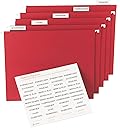
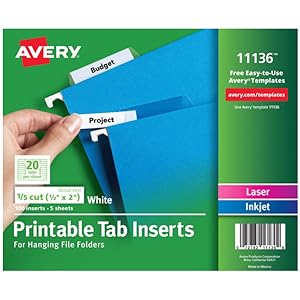
Avery Printable Tab Inserts (1/2" x 2", 1/5 cut) offer 100 high-quality white paper tabs designed for hanging file folders. Compatible with laser and inkjet printers, these double-sided printable inserts allow for easy customization using Averyโs free templates or handwriting. Perfectly sized for quick, professional organization and fast file retrieval.


| ASIN | B00006IBVR |
| Best Sellers Rank | #5,601 in Office Products ( See Top 100 in Office Products ) #35 in Index Tabs #361 in Filing Products |
| Brand | Avery |
| Brand Name | Avery |
| Color | White |
| Customer Reviews | 4.4 out of 5 stars 2,720 Reviews |
| Global Trade Identification Number | 00072782111366 |
| Included Components | Tab Inserts for Hanging File Folders, 2", Laser/Inkjet |
| Item Dimensions L x W | 9.5"L x 8.5"W |
| Item Type Name | Printable Tab Inserts |
| Item Weight | 0.1 Pounds |
| Manufacturer | Avery |
| Manufacturer Part Number | 11136 |
| Material | Paper |
| Material Type | Paper |
| Model Number | 11136 |
| Number of Dividers | 100 |
| Paper Size | 2 |
| Product Dimensions | 9.5"L x 8.5"W |
| Sheet Size | 2 |
| UPC | 072782111366 |
| Unit Count | 1.0 Count |
| Warranty Description | No |
L**N
Avery WorkSaver Tab Inserts, Fits 2" Tabs, White, 100 Inserts Per Pack, 600 Inserts Total 6-Pack
Avery has always been worth the money, good quality, great fit & very sturdy!!!
L**D
Just as expected.
These were just what I needed and look & work great. Quite satisified.
P**S
Guide to simple label making
When you buy most hanging file folder they have a small packet of clear plastic tabs and some precut white labels. Your only real choice is to hand write on those labels because they wonโt fit in a typewriter or computer printer. If you have a lot of files and youโre picky about neatness and legibility you can buy sheets of die cut labels that fit in a printer and Avery even offers the template online for free. But theyโre expensive, my local office supply store wants almost thirty bucks for a box so big I could print labels for the Pentagon. The number one best feature of these is that they are $1.72 for enough labels to suit a typical home user. They even come with a test sheet so you donโt waste any of the card stock. I canโt understand how anyone can find fault with that. But here are a few tips to correct any misconceptions and a few more ideas to not only save you money but help you make better labels than you ever expected. TIP 1 Forget any concerns about the size of the pages, I donโt know why theyโre not standard page size but who cares. They fit any printer perfectly, youโre not supposed to load them in your regular paper tray but use your single page feed tray instead. TIP 2 They include one lined test page. If you have the capability you could make extra copies if you think youโll need them but hereโs a better way. Just fill in the template on your computer and print one page on ordinary paper then hold it up to a bright light (I press it against my window) and line up the edges of one of the card stock sheet to it and see if everything lines up. As expected mine lined up perfectly. Then print the real thing. TIP 3 Now hereโs where it gets interesting. They tell you that there are 20 labels per sheet, which is true,but instead of folding over double along the top they fold over from side to side. You donโt need to have labels that are double thickness and the template actually guides you to create a label in every cell for a total of 40 per page. And when you pop them out of the perforated sheet they easily tear that way as well. Voila, you just saved half price on every sheet of labels. TIP 4 Hereโs the one Iโm really excited about. If you have a color inkjet or laser printer (and who doesnโt these days), you can use color text and not only that but you can fill any cell with color just like you would on a spreadsheet so you can create full color labels right at home. That way you can easily color code your file drawer for the ultimate in organization. I hope these tips have been helpful to you, needless to say I love these labels and Iโm astounded at how economical they are to use.
J**.
Printing Solution
I had a heck of a time getting this to print correctly. A lot a people seemed to have a similar problem but I didn't find anyone who seemed to solve it. I figured out what I was doing wrong. On all the Avery forms I've used so far, they all allowed me to print on an 8 1/2 by 11 form. This form is 8 1/2 by 7 which is the main culprit. Two mistakes that I made: 1 . The physical form is designed to look like a Portrait form but it is designed to print in landscape. There is an arrow on the form pointing up so it looks like you load the form just like you would load an 8 1/2 by 11 form. You cannot leave your 8 1/2 by 11 paper in the printer and just put these forms on top. You first have to take out the 8 1/2 by 11 paper and adjust the paper tray tabs to handle 8 1/2 by 7 forms. You then load the forms face down with the arrow pointing to the right. 2. When you print the form, make sure your printer is set to print in Landscape mode. Can't believe it took my so much time to figure out what I was doing wrong.
K**T
My files look so professional and organized
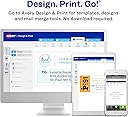
Avery Printable Tab Inserts are a game-changer for anyone looking to organize their files with ease. These inserts are incredibly convenient, allowing you to customize your tabs directly from your computer using the free templates on Avery's website. The process is straightforward and intuitive, making it easy to design and print professional-looking labels in just a few steps.
T**L
Be Sure to use the Avery Website for printing and print using the Adobe Acrobat.
I have used a lot of various labels in the past using Microsoft Office. Microsoft Office no long updates their software for the various label companies. Therefore you have to set up individual templates for labels. Avery has a online label printing templates and you can save your work online if you chose. I have never used their template program and was concerned how accurate it would be. It was very good, but for me the alignment was better if I used Adobe Acrobat to actually print the labels. I suggest the first time you print, print on a plain sheet of paper, then overlay it onto the labels, then hold it up to the light to make sure it aligns the way you want. The labels are thick enough my printed grabs the sheets well without having to change the printer settings to a thicker paper. If you use only a portion of the labels Avery allows you to specify which label to print. Sounds good but has problems in the actual execution. I would suggest if you only want to print a few labels that you start at the bottom and work your way up. Once you have printed a portion of the labels, I found my printer needed for me to tape the top of the labels to an 8.5 x 11 sheet of paper to keep the labels from skewing off sides. I liked these labels well enough that I have re-purchased several times.
G**R
not what i expected
only paperlabel.
M**4
PERFECT !! Avery WorkSaver Tab Inserts 11136
Ordered these for an update/reorganization of a couple of really old personal filing cabinets. They have worked out great! I have an HP Pro 8610 printer. I downloaded the Avery 11136 template for MS Word to my laptop, filled in all the blanks with "TEST", and printed a couple of pages to check against the actual Avery Tab sheet and it appeared everything lined up perfectly. So I printed out 2 pages of tabs on the actual WorkSaver Tab Insert sheets and they did line up just perfect. These sheets are the exact size in width (8.5") as regular letter size printer paper, but they are only about 7" tall. So I simply adjusted my paper tray to fit the smaller height. In MY printer, the pages go into the tray printed face down with the Avery heading going in first. I would suggest you print a regular 8.5" x 11" sheet on your printer and mark the way you put it into your tray.....Top, Bottom, Up, Down....so you can figure how the tab sheets need to be inserted. I also loaded only one tab sheet into my printer at a time and as such, had no jams. Might work with several, but I didn't try it. And printing a whole page at a time is the best policy, if possible. Otherwise, print from the bottom tabs up. And in view of Amazon's current review policies, with which I completely disagree, but which include (1) Allowing essentially paid reviewers to review products, whether they are "verified purchase" or not, which IMO greatly skews the reviews, and (2) Allowing reviews for multiple lines of a manufacturer's product to group together (15 qt. up to 60 qt. Igloo ice chests, for example, all merged into a review for a specific 40 qt. chest), let met state that I did NOT receive this item free nor was I paid to review it. And the review is for the Avery 1/5 Cut WorkSaver Tab Inserts only, Item 11136.
R**E
works well
just something you need in shed
G**.
Great
Great to have on hand
J**E
๐
Parfait !
O**Z
Permite usarlos para imprimir en impresora y hacen su trabajo.
No hay mucho que decir de unos insertos para folders de archivo. Solo que te permiten imprimir perfectamente las etiquetas en la impresora, solo que tienes que llenar la hoja cada vez que imprimas.
B**A
Hanging file labels
Very pleased with these labels, they align exactly in printer and fit in tabs ok. May be short for some hanging files but size is given so this can be checked.
Trustpilot
3 weeks ago
3 weeks ago